
Dentra Core
Placing a new order
A guided flow takes you from choosing the work to sending it, with the price updating at every step. It works from your phone too.
Before you start
Open New order from the Dentra Core menu. At the top you see which step you're on, at the bottom the item's price estimate and the names of the steps: the ones you've done can be clicked to go back to them. If you go back to an earlier step, the choices in the steps after it are reset, uploaded files included.
The form saves itself in your browser. If you leave it halfway you'll find it again for two hours; if you've already reached the summary, it stays there until you send it.
You can fill in the order even without an account: at the end press “Register to confirm”, sign up and find the order just as you left it. Files chosen before signing up are uploaded after you register; but if you close or reload the page before signing up, you need to choose them again.
For now you can only order from Europe: Dentra Core takes orders from practices and labs based in the SEPA area countries, because orders are paid by end-of-month bank debit. If your business is based elsewhere, you can already use Dentra Viewer and Oralsnap Model.
The work and the teeth
- 1
What type of work do you need?
Choose the work from the list. Material and processing aren't chosen here: Dentra Core designs, and you decide on production.
- 2
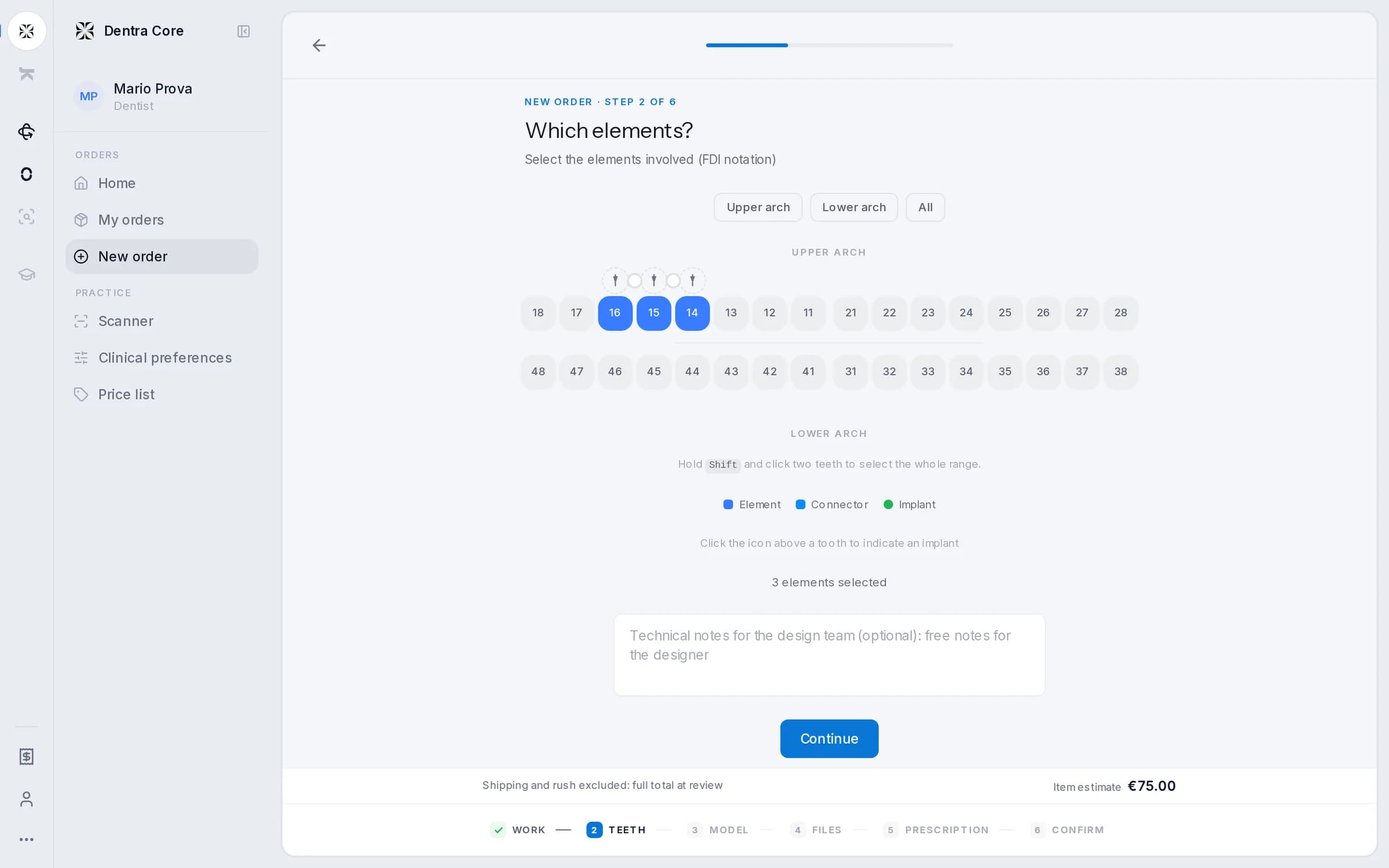
Which elements?
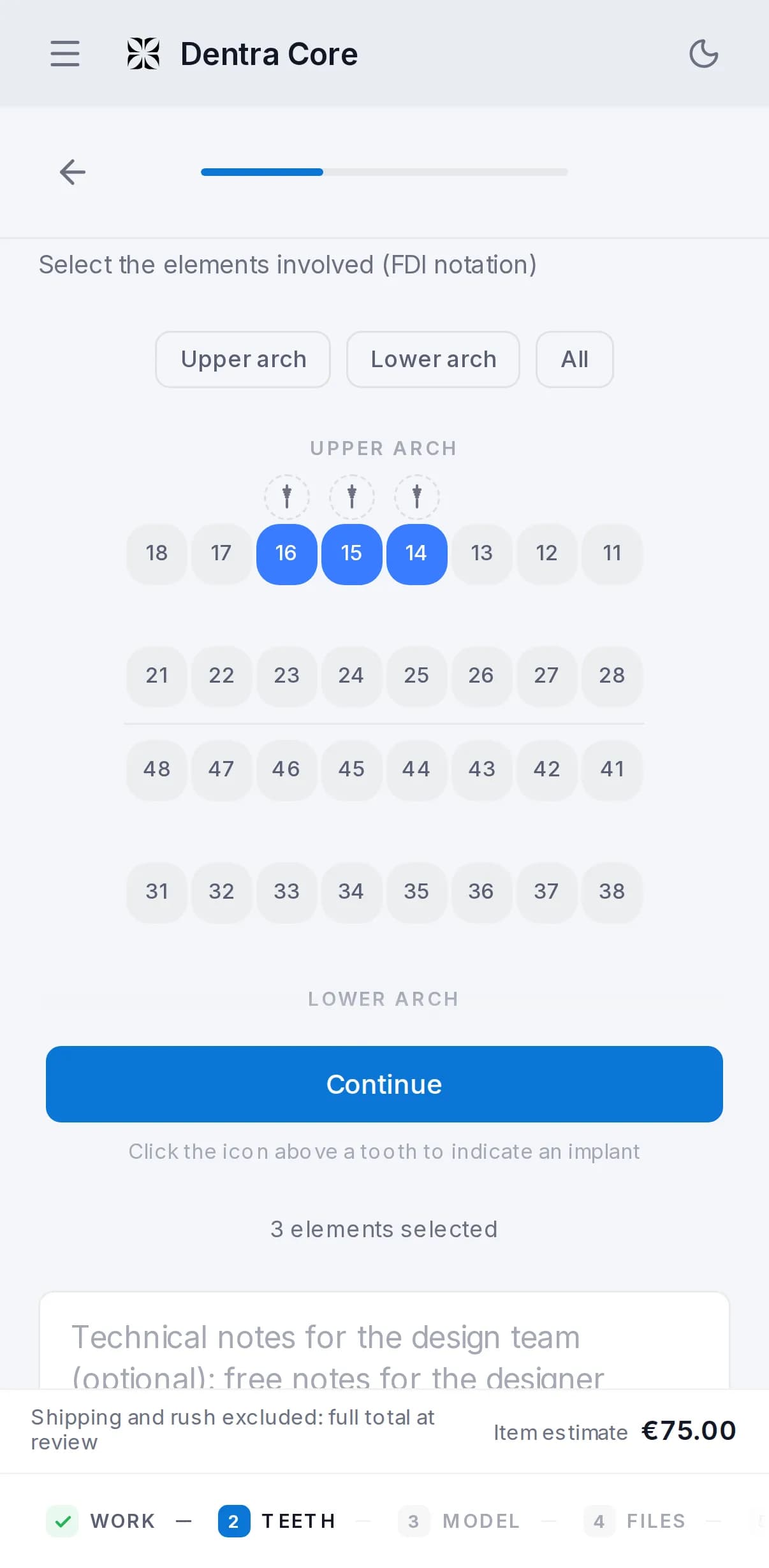
Mark the teeth on the chart (FDI notation). “Upper arch”, “Lower arch” and “All” select them in one go; holding Shift and clicking two teeth selects the whole range. To join two neighbouring teeth, for example in a bridge, press the small circle that appears between them. The circle is there on wide screens, like a computer's: from your phone, write the connections in the notes. For full-arch work you choose the arches instead.
- 3
Implants
Mark the tooth, then click the icon that appears above it (below, on the lower arch) to mark an implant and search for the brand and model by typing at least two letters. Once you've chosen the implant, there's a field for diameter, length and connection. If your implant isn't there, below the results press “Can't find your implant? Report it”: enter the brand and model and, if you have them, add the manufacturer's library files. The tooth takes it straight away and the order goes ahead.
- 4
Notes for the designer
Below the chart there's an optional space for technical notes on this job.
Model and scans
For some work the Working model step appears: it's optional. Choose the half-arches only if you want us to design the model, for example with removable dies, gingiva or an analogue seat: each choice has its own price, shown next to it. If you only need a model to print, don't order it here: once the work is delivered you create it yourself with “Create the models”.
At the Upload scans step you drag the files in or click to choose them. Scans can be STL, OBJ, PLY or STEP, up to 200 MB per file.
| What | Needed? |
|---|---|
| Upper Jaw and Lower Jaw (upper and lower arch) | Required: you can't go on without both |
| Bite Scan and Scanbody | Optional; add more with “+ More bite scans” and “+ More scanbodies” |
| Extra dies | Optional, with “+ More abutments” below the arch |
| Photos (JPG, PNG, WebP, HEIC) | Optional |
| CT scan in DICOM (.zip or .rar archive) | Optional |
| Additional files (PDFs, images, archives) | Optional |
Photos, CT scans and additional files are behind “Add photos, a CT scan or other files (optional)”.
The medical prescription
Every design starts from a prescription, and you fill it in inside the order. You sign it when you confirm, with one click.
- Patient: first and last name stay private, Dentra is shown a code. Instead of the name you can enter just a code or a pseudonym; the date of birth is optional.
- Clinical indication: what you're prescribing for this patient. Files alone aren't enough.
- Your dental register number, if you're a practice and haven't given it yet. If you're a laboratory, you name the prescribing dentist, with name and register number.
- Confirmation that the patient details and the clinical indication are correct and complete.
If your account hasn't accepted the data processing agreement (DPA) yet, you accept it here with a tick. If you've connected Oralsnap, you can choose the patient from your records and the fields fill in by themselves.
Don't have the details to hand? Press “Skip for now”: the order goes in and the work goes ahead anyway. You complete the prescription whenever you like from inside the order: see the order page. Until then, the order shows “Prescription to complete” in the list.
Summary and confirmation
- 1
Check the order
The summary shows each item with its price, and the prescription. The pencil takes you back to the step you want to fix. In the “Reference” field you can enter a name to find the case again.
- 2
One job per order
Each order contains a single job: for another job, place a new order.
- 3
Choose when you need it
In “When do you need it?” standard delivery is included. If you need it sooner, choose a closer day and the time slot: the surcharge appears in the total. Below the total you can read the estimated delivery date.
- 4
File Check, if you want it
With “File Check” the team checks your files before work starts, for a small fee shown next to it. Without it, you're responsible for the files.
- 5
Oralsnap, if it's connected
The “Send this case to Oralsnap too” box is already ticked: the case also appears in the app and moves forward by itself until delivered. The patient's first and last name don't leave: the code is sent. If you don't want it, untick the box.
- 6
Confirm order
Press “Confirm order”. The page of the order you've just created opens.
To send your first order you need billing details and SEPA direct debit. If they're missing, a window to complete them opens when you confirm: the filled-in order stays there and you send it right after.
After you confirm
- 1
Order received
The order page opens, with the status Pending, and you receive a confirmation email. The delivery time starts counting from here.
- 2
Taken on and in progress
The order becomes Confirmed and then In progress: a dental technician designs your work. If anything is missing, they write to you in the order's messages.
- 3
Quality check
Before it reaches you, the design is checked.
- 4
Your turn
The order becomes Awaiting your review and you receive an email: open the design in 3D and decide. See reviewing the design.
How do I place an order?
From your Dentra area open New order and follow the steps: choose the type of work, mark the teeth on the chart, upload the scans and fill in the prescription. If you don't have the prescription details to hand you can skip it: the work starts anyway and you complete it later. In the summary you see the price and delivery date before confirming. With your first order we also ask for the SEPA direct debit authorisation, just once.
Do you offer CAD design services?
Yes, that's what Dentra Core does: you upload the scans and our team designs the work digitally. We specialise in Toronto Bridges with a custom internal bar, as well as crowns, bridges, veneers, dentures, surgical guides and implant structures.
What work can I order?
Crowns and bridges, veneers, Toronto, surgical guide, full and partial dentures, MAD (mandibular advancement device), occlusal splint, custom tray, study model and model design. The up-to-date list with prices is in the price list.
Do I have to choose the material in the order?
No. The design price is the same for all materials of the same type of work, and the file is ready for production in the material you will use. If you have special requirements, write them in the order notes.
Which files can I upload?
Scans in STL, OBJ, PLY or STEP, up to 200 MB per file. You can add photos (JPG, PNG, WEBP, HEIC), PDFs and ZIP, RAR or 7z archives. For work that requires it, such as Toronto, you can also upload the CT scan in DICOM, in a ZIP or RAR archive up to 500 MB.
What should I upload for a typical case?
The upper arch, the lower arch and the bite. When needed, add the scans with scanbodies, the photos and the CT scan.
How do I indicate the implants?
On the tooth chart you mark the elements, join those that form bridges, and for each implant you indicate the brand and connection.
Can I download STL files for implants?
Yes: when you pick the implant inside the order you can download its library files to import into your design software. If your implant system isn't there, write to us and we'll add it.
What is the prescription in the order?
It's the prescription for the custom-made device: you enter the prescriber with their professional register number, the patient (a code instead of the name is fine) and the clinical indication. You sign it with a simple electronic signature: the date and time are recorded and you can download it as a PDF. If you don't have the details to hand, press “Skip for now”: the work goes ahead anyway and you complete the prescription whenever you like from the order page, with “Complete it now”.
Can I save an order halfway through?
Yes, the draft saves itself while you fill it in, and you'll find it when you reopen the order from the same browser.
Can I change an order I've already sent?
Yes, once, as long as the order is pending, confirmed or in progress. If it's still pending the change is free; if it's already confirmed or in progress it costs from €5 to €15, depending on how much time has passed since you sent it. The delivery date may move.
Can I cancel an order?
Yes: ask for it in the order's messages, since there's no button. What counts is the order's status when it's cancelled: if it's Pending or Confirmed you pay nothing; if it's In progress you pay 50% of the total; if it's in Quality check or Awaiting your review, 100%. The amount goes on the end-of-month invoice, on the line “Orders cancelled after work started”. Cancelling an order that's already Delivered costs nothing extra, and if the cancellation is down to us you pay nothing.
Is there a chat on each order?
Yes, every order has its own chat with the team, and you also receive the messages by email. There you can send clarifications, photos and requests about the case.
Can I track my order?
Yes, from your Dentra area you see in real time where it is: pending, in progress, quality control, to be reviewed, delivered. Every step is recorded with date and time, and you'll find the history of all your orders.
How do I receive the design files?
When the work is ready you get a notification and download the files from the app, all together if you like. Delivery is digital only: no shipping and no shipping costs.
What are clinical preferences?
They are your standards, set just once: models (base, solid or hollow, removable dies, articulator, gingiva), margins and cement space, undercuts, minimum thicknesses, pontic compression. The team sees them before every job and you don't have to repeat them in every order.
How long can I correct the patient's details?
Up to 7 days after delivery, from the order page.
Can I see the price before ordering?
Yes. The price is calculated while you fill in the order: it depends on the type of work, the number of elements or arches and the delivery date you choose. In the summary you see the total before confirming, and you can change your choices and watch it update.