
Dentra Viewer
Creating and managing links
A link is made from the models you upload: whoever receives it opens them in the browser, with nothing to install.
Creating a link
To create a link you need a Dentra account, even a free one. Without an account you can open and rotate models as much as you like, but there's no link to send. The first time you open Dentra Viewer with your account, press “Activate for free”.
- 1
Upload the models
In Dentra Viewer, under “New link”, drag the files into the “Drag files here or choose them” box: STL, OBJ, PLY, GLB or a ZIP. With “Or upload a whole folder” you take them all in one go. If you also add the project file from your software, the pieces fall into place on their own. The files start uploading as soon as you choose them.
- 2
Set the options
Under “Link options” choose title, password, expiry and download: they're explained below.
- 3
Press “Create link”
The button lights up when all the files are uploaded. Press it: “Link ready” appears, with the address to copy.
- 4
Send it
Press “Copy” and paste it wherever you like, or press “Send by email”. With “Open the link page” you see what the recipient will see; with “Create another link” you start again.
With the free account each file can be up to 50 MB and you can share 300 MB of files a month: the count resets on the 1st of the month, and you see it at the bottom of the links panel, under “Usage this month”. With PRO files go up to 250 MB and you have 10 GB of storage, shown under “Storage used”.
Link options
| Option | What it does | Free account | PRO |
|---|---|---|---|
| “Title (optional)” | The name of the link, which you see in the list and the recipient sees at the top of the page. | yes | yes |
| “Password (optional)” | Whoever opens the link has to enter it to see the models. | no | yes |
| “Expiry” | How long the link stays open. When it expires, the files are deleted. | 7 days | “Permanent”, 7 days, 30 days or “1 year” |
| “Download of the original file” | Whoever opens the link can download the original file. Switched off, the model can only be viewed. | no | yes |
On the free account the PRO options are visible, with the PRO badge, but they can't be selected. With PRO, if you don't choose an expiry, the link is permanent.
Sending the link by email
- 1
Press “Send by email”
You'll find it below the link you've just created, and in the panel of every link you open from the list.
- 2
Enter the recipient
Put the address in “Recipient's email”. To send it to several people (up to 3 at a time), separate the addresses with a comma or a space. If the recipient replies, the reply comes to you.
- 3
Add a line or two, if you like
“A line or two for them (optional)” goes into the email together with the link. Then press “Send”.
Your links
Under “Your links” you'll find all the links you've created. For each one you see the title, how many times it's been opened and its status: “expires on” with the date, “permanent”, “expired” or “revoked”. The padlock means the link has a password, the down arrow that whoever opens it can download the original file. An expired or revoked link stays in the list for a short while, then disappears along with its files.
- Click a link to put its models back on the scene: on the right a panel opens with “Copy link”, “Open the link page” and “Send by email”.
- The eye opens the model on its own page, the arrow icon opens the recipient's page, the double icon copies the link.
- If the link has a password, you see it under the title: press the eye next to it to show or hide it.
- The bin revokes the link.
Revoking is immediate and doesn't ask for confirmation: whoever opens the link no longer sees anything. To show the work again you have to create a new link.
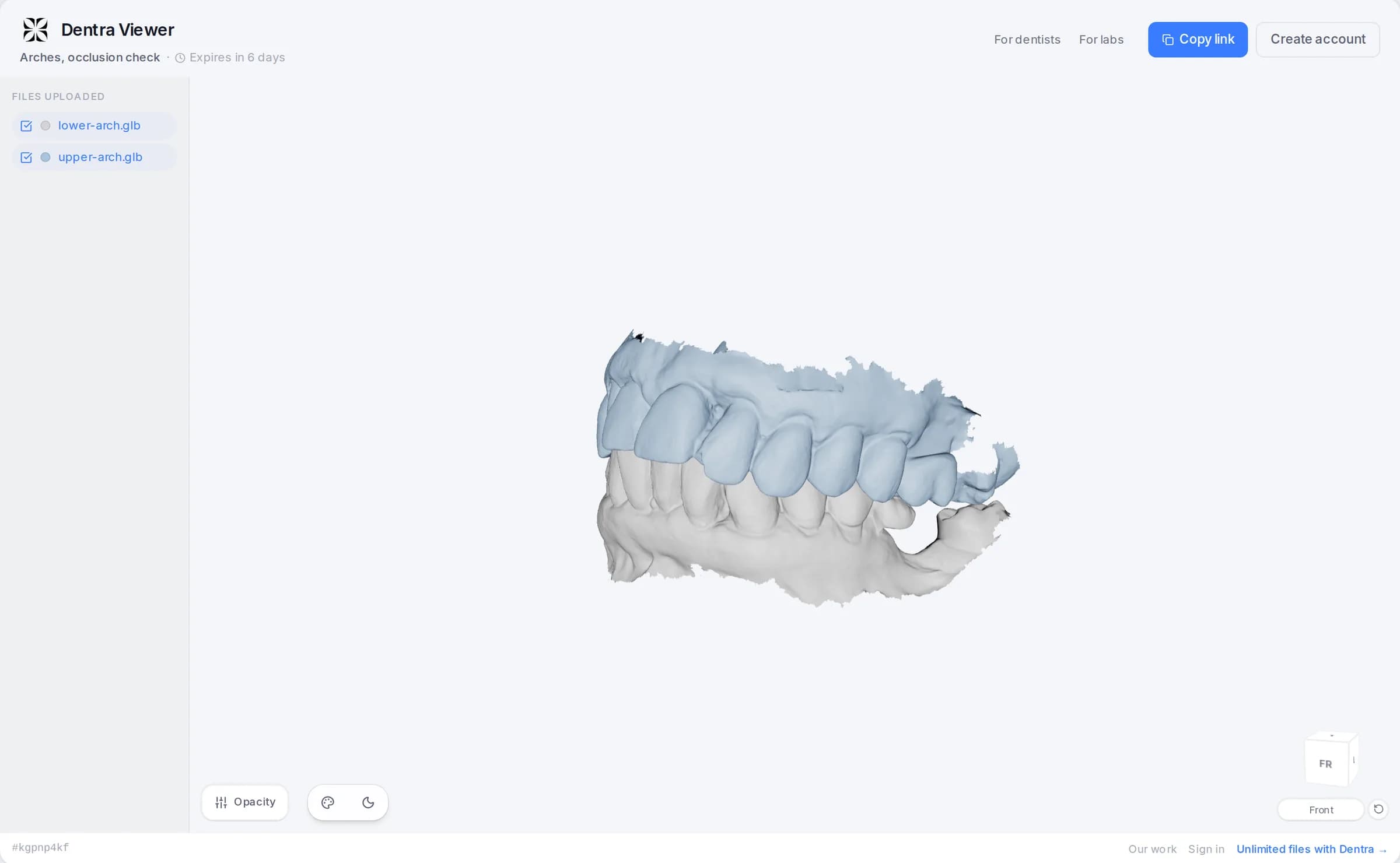
Changing a link you've already created
- 1
Open the link with the eye
In “Your links” press the eye next to the link: its models open on a page of their own.
- 2
Press “Edit”
“Edit the link” opens: change the title, the expiry, the password and the download of the original file, then press “Save”. The new expiry counts from that day.
Password, custom expiry and download can only be changed with PRO. From here a password you've already set can be changed, but not removed. The same panel also has “Switch the link off”.
What the recipient can do
- They open the link in the browser, on a computer, tablet or phone, with no account and nothing to install.
- If the link has a password, they enter it before they see the models.
- If you've turned on download, next to each file they find the button to download the original.
- With “Copy link” they can pass it on: whoever has the link sees the models. For confidential work, add a password, with PRO.
- They don't see the mesh diagnostics or the plugins.
- When the link expires they see the “Link expired” page, which asks them to request a new one from whoever sent it. If you revoke it, the page no longer exists.
If a file won't go through
- “File too large”: the file is over your plan's limit, 50 MB on the free account and 250 MB with PRO.
- Monthly limit: on the free account, when you press “Create link” a message tells you that you've already shared the 300 MB for the month. The count resets on the 1st of the month; with PRO there's no monthly limit. Links you revoke or that expire still count: revoking doesn't give back the month's MB.
- “Storage full”: with PRO you've filled your 10 GB. Revoke the links you no longer need: files that none of your other links use are deleted straight away, and the space is freed.
- “Format not supported”: the Viewer opens STL, OBJ, PLY and GLB, also inside a ZIP or a folder.
- If there are a great many files, the Viewer takes the first ones and tells you the others were left out.
- A very large file may not show in the preview on the scene: it still uploads and gets sent.
From your phone
Dentra Viewer works on phones and tablets too. On the phone it opens on the scene: press “Upload your models” to choose the files. The controls sit in a panel that slides up from the bottom: close it with the X to look at the model, and open it again by tapping “New link · Your links” at the bottom of the screen. On the phone you can't upload a whole folder: choose the files or a ZIP.
Going PRO, and going back
At the top right there's the plan button: on the free account it says “Free”. Press it: a window opens with what changes and the price. Choose “Monthly” or “Yearly” and press “Activate”. PRO is paid by SEPA direct debit, not by card, and it needs your billing details: if something is missing, “Activate” opens a window that asks only for that. To go back, press “Back to free” in the same window: PRO stays active until the date shown, then the plan goes back to Free. On monthly the date is the end of the month, on yearly the end of the year you've already paid. When PRO ends, your links go back to lasting 7 days from the end of PRO and the original file download is switched off. The password, if there is one, stays.
Frequently asked questions
What is Dentra Viewer?
It's the way to open and share dental 3D models: you upload the file and send a link. Whoever receives it opens it in the browser from any device, without installing anything.
What can I do for free with Dentra Viewer?
With the free account you can open and share STL, OBJ, PLY and GLB files up to 50 MB, for a total of 300 MB of shared files per month. Links last 7 days.
What does Dentra Viewer PRO add and how much does it cost?
It costs €10 per month, or €100 per year. It adds files up to 250 MB and 10 GB of storage, password-protected links, an expiry of your choice (from 7 days to forever), download of the original file, and your logo with your colours.
How do I pay for PRO and how do I cancel it?
In the first month you only pay for the remaining days, then the fee goes onto the end-of-month invoice with the SEPA direct debit. If you cancel, the current month stays paid in full and PRO remains active until the end of the month.
Does the person receiving the link need to sign up?
No, they open the model in the browser. You see how many times it has been opened and you can revoke the link whenever you like.
Is there an app to download?
Yes, Dentra Viewer for desktop: free and with no account, for Macs with Apple processors and for Windows 10 and 11. It opens files even offline and updates itself. You'll find it on the Download page.